Corridor Numerics العربية
Open studio · Giza, Egypt

Available on Android

Sophia Assistant

Open a source and write with it beside your draft. Find the original passage or inspect the numbers in a table before deciding which sentence to keep.

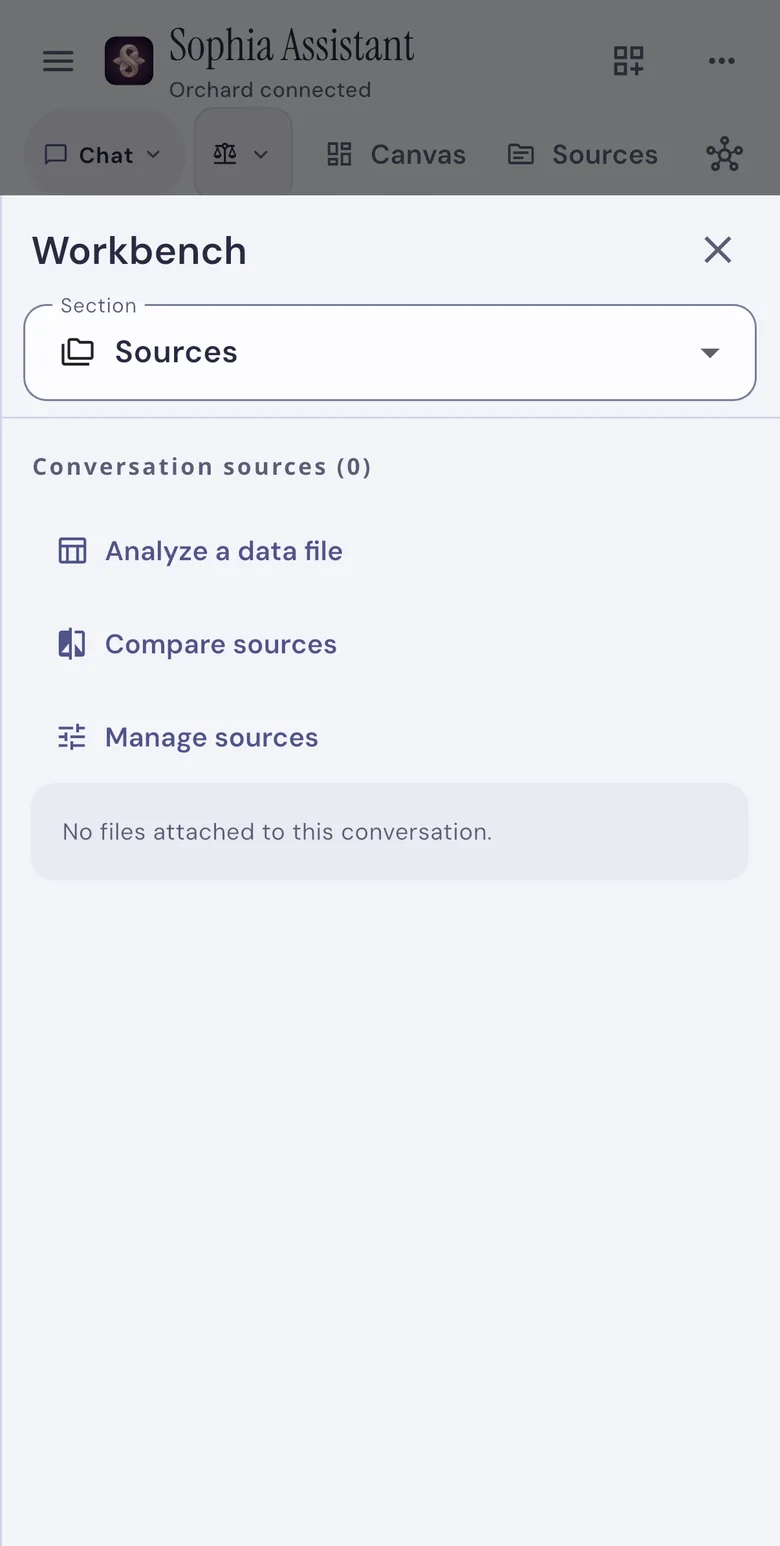
Sophia’s Sources screen offering to analyse a file, compare sources or manage files.
iPhone view · Select a source and check it alongside a draft.

Does pointing to the cell help?

Review six claims against one table. This exercise compares seeing an excerpt with seeing the relevant cell. We’re testing which helps readers catch more errors.

Sophia on iPhone

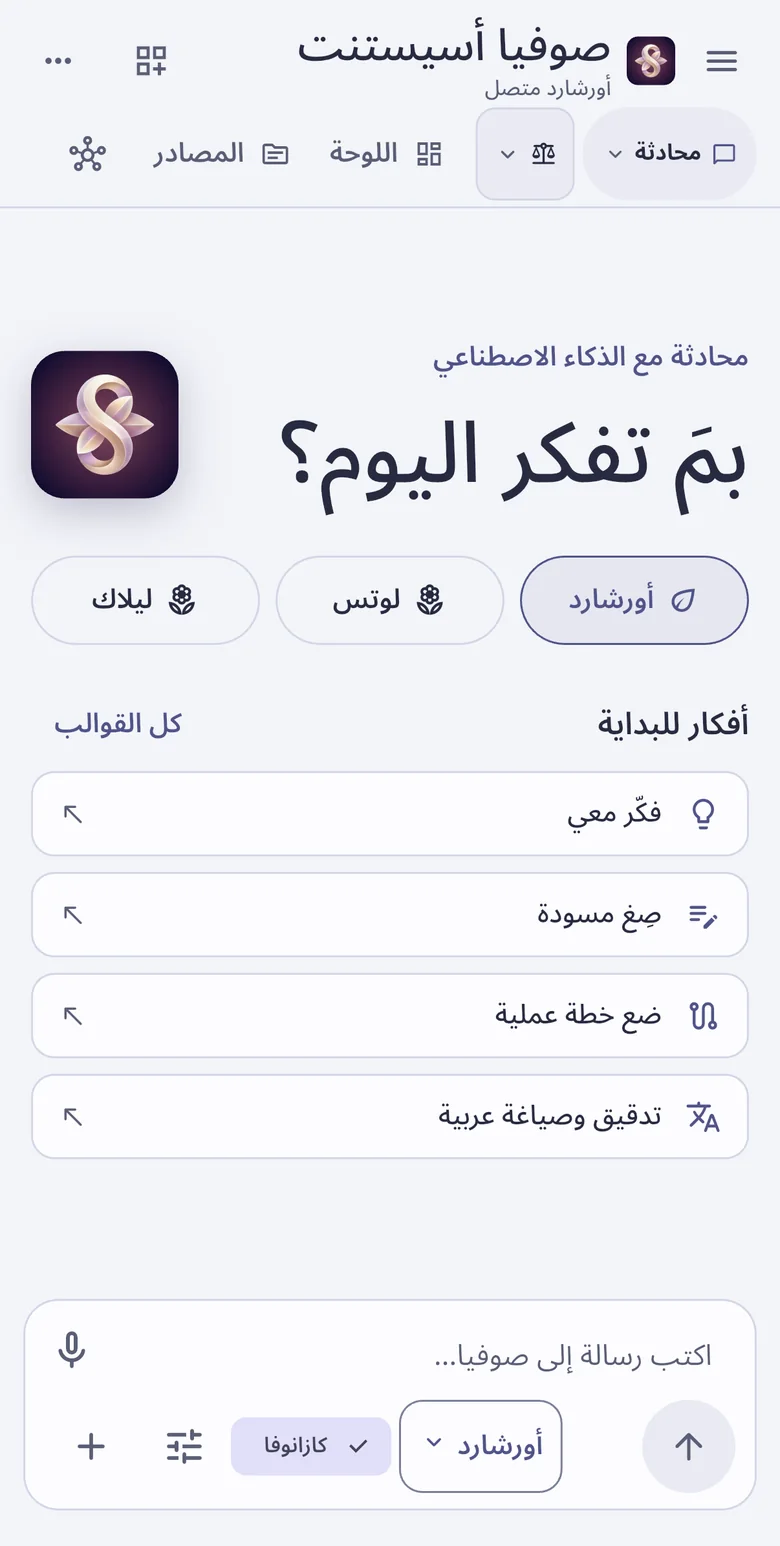
Choose Orchard, Lotus or Lilac, start from a prompt or simply ask. The whole app works in Arabic, right to left, and every chat and source is a search away.

  • Sophia’s home screen asks what’s on your mind, offers Orchard, Lotus and Lilac, and lists starting points such as Think it through and Shape a draft.
    Start with Orchard, Lotus or Lilac.
  • The same home screen in Arabic, arranged right to left.
    The same app in Arabic, right to left.
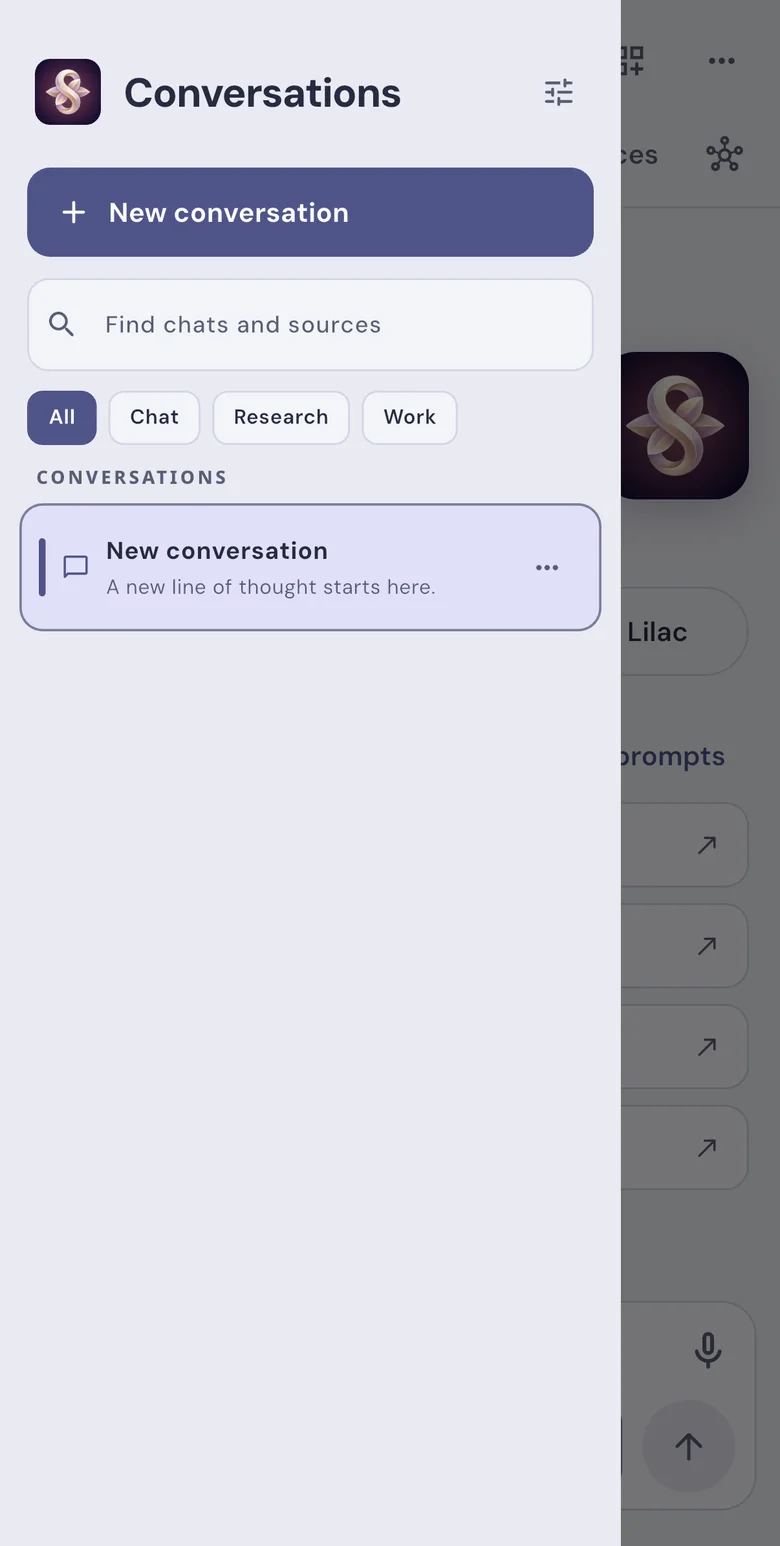
  • The conversations panel: a New conversation button, a search box for chats and sources, and filters for Chat, Research and Work.
    Find any chat or source, sorted by Chat, Research or Work.

Write with the source beside you.

Attach a file, find a passage in its saved excerpt and bring it into your draft. Try a different wording in Canvas and check it against the original.

Sources
Find a phrase in your saved excerpts, collect passages across files and open each one in context.
Canvas
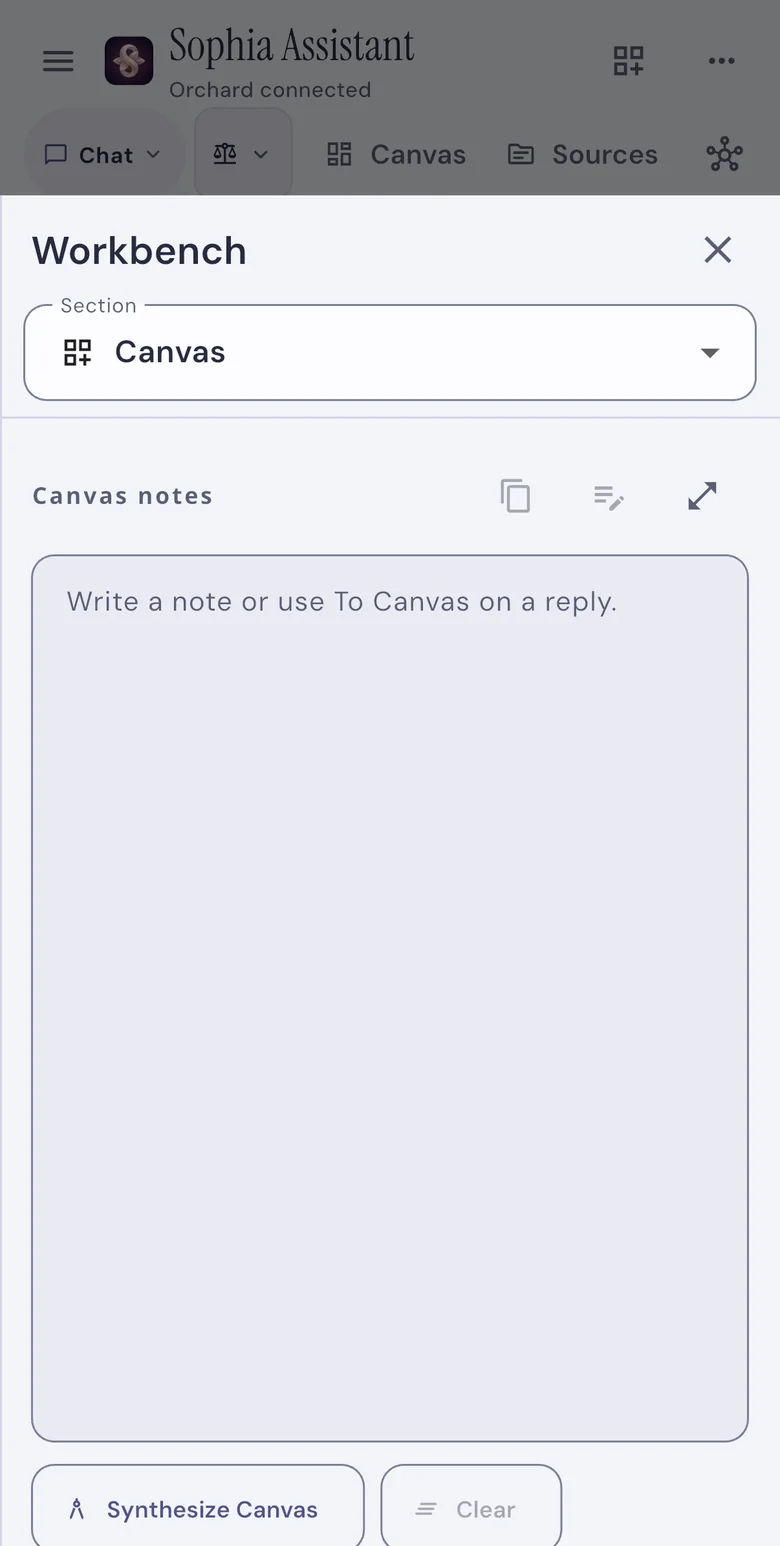
Keep notes beside your draft. Select a sentence to revise it and preview the change before applying it.
Tables
Open a CSV or TSV to calculate column statistics on your device. Add the numbers to a draft or save the summary as a file.
What the app sends
Sophia’s workbench open on Canvas, with a notes area and a Synthesize Canvas button. Sophia’s workbench open on Sources, offering to analyze a data file, compare sources or manage them.
The workbench: Canvas notes and the conversation’s sources.

Getting Sophia

Sophia on the web

Browser Studio

Start a draft or read a source as a guest. To chat, open Chat options, choose Account & projects, enable hosted features and sign in with your verified email address and password.

Open Browser Studio

Chats and sign-in stay in this tab; export your work before refreshing or closing. Google and Apple sign-in are available in the app. Web and mobile share the same account usage allowance. Choose Orchard, Lotus or Lilac for hosted replies.

Facilitated Sophia research slots for teams

iPhone and iPad

Sophia Assistant 1.0 is on its way to the App Store. We’ll link to it here as soon as it’s out.

The models

Orchard, Lotus and Lilac

Orchard

In the installed app, Orchard uses DeepSeek V4.1 Flash 1017 through Modal for new conversations. It requests a direct answer for everyday writing, research and tool use.

DeepSeek model card
Earlier Orchard research and model sources

Build 33 uses checkpoint 424, the Corridor Numerics adaptation of Mistral AI’s Ministral 3 3B. In the Flash-enabled app, saved 424 conversations remain available to read. Start a new conversation to use Flash.

Ministral model card

The checkpoint 424 adaptation used examples from OpenAssistant 2, Aya, Taskmaster-1, Smol-Magpie-Ultra and Corridor Numerics. Hugging Face generated the Smol-Magpie-Ultra source examples using Meta’s Llama 3.1. Training collection · Llama 3.1 source terms.

In a research test of single-form Arabic answers to previously unseen roots, checkpoint 424 met the scoring rule on 0 of 48 Egyptian Arabic items and 0 of 48 Modern Standard Arabic items. Have a fluent speaker check language-learning answers.

Lotus

Sophia’s chat with Moonshot AI’s Kimi K3. Modal serves K3 for Sophia. You can choose Lotus when you start a conversation.

Kimi K3 model and license
Serving and limitations

Modal identifies the hosted model as Kimi K3. Its shared service does not publish the exact weight revision. Sophia supplies the conversation context. Research edits to K3 weights are evaluated separately.

Lilac

Sophia’s chat with Moonshot AI’s Kimi K3.1 Pro, served through Modal. Like Lotus, Lilac can read photos you attach. You can choose Lilac when you start a conversation.

Long conversations

In a long chat with Orchard, Lotus or Lilac, Casanova condenses the older turns on your device before sending, and your full conversation stays saved. You can turn Casanova off in the composer.

Hosted chat

Enable hosted features in the installed app to verify the installation. Sign in with your verified Sophia account and choose a project. Sending shares your message, relevant context and selected excerpts with the service. Free hosted chat allows up to 24 accepted requests per account and per installation each day. The service can accept 256 requests across all users per day. Both limits reset at 00:00 UTC. If a reply is interrupted, retrying keeps the last saved answer until a replacement finishes.

All three models can make mistakes in either language. Check quotations and factual claims against the original sources. You can flag a reply and keep the operator’s report reference.

Saved on your device

Your chats, drafts, Canvas notes and attachment excerpts are saved on your iPhone or iPad, in a separate workspace for each account and for guest use. Deleting your account in the app also removes its workspace from that device.